
How to Join the Server
Apply through Discord, get whitelisted, link your Minecraft account with TeraBot, and connect to play.terranovasmp.net.
Terra Nova is whitelisted. Every new player applies through our Discord server, and staff review each application by hand. Follow these steps to pass through the gates.
1. Read the rules
Before anything else, read the Server Rules. Your application assumes you have read them and agree to follow them.
2. Join the Discord
Discord is the heart of the community. Announcements, applications, support tickets, claims and most conversation happen there.
3. Apply in #join-the-server
Open the #join-the-server channel and fill in the application form. Take your time, because thoughtful answers about how you like to play help staff get to know you.
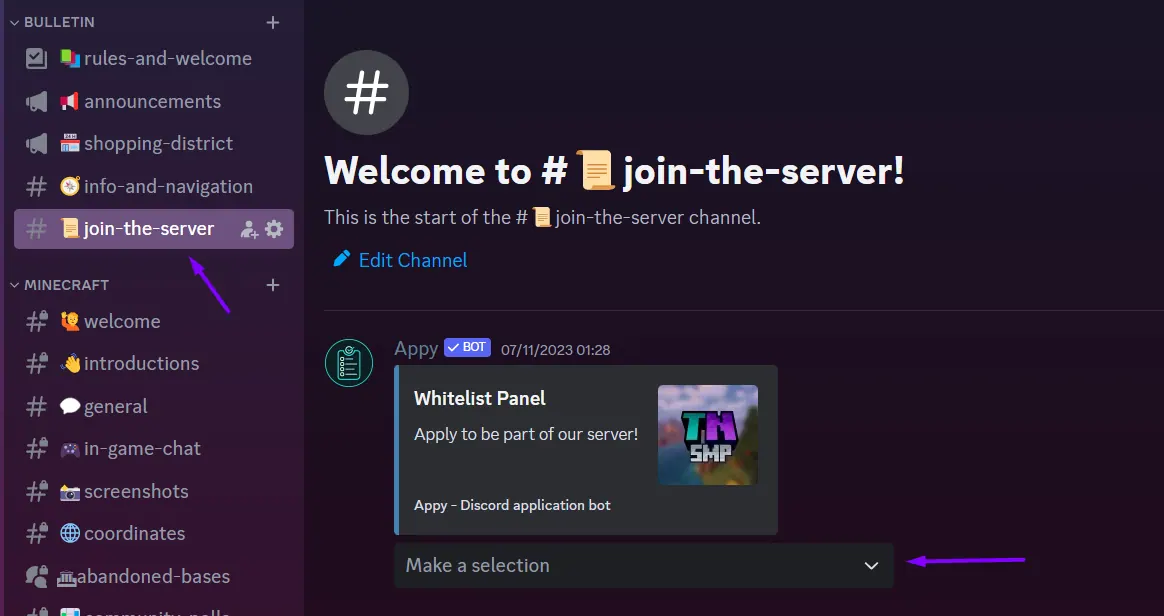
Can’t see the channel? Open the server menu in Discord and enable Show All Channels.
4. Link your account with TeraBot
Once you are accepted and whitelisted, connect to the server. On your first connection you receive a link code. Send that code as a private message to @TeraBot on Discord. This links your Minecraft account to your Discord account, so your roles and rank follow you in-game.
5. Connect and play
Add the server in Minecraft under Multiplayer → Add Server:
| Setting | Value |
|---|---|
| Server address | play.terranovasmp.net |
| Edition | Minecraft Java Edition |
| Version | 26.2 |
When you join, accept the server resource pack. It adds Terra Nova’s custom items and decorations. See Resource pack & client mods if you declined it by accident.
Trouble getting in?
- “You are not whitelisted”: your application may still be under review. Check your Discord notifications.
- No link code appeared: reconnect once. If it still does not appear, open a support ticket.
- Version mismatch: make sure your launcher profile matches the server version above.
Still stuck? Open a support ticket on Discord and a Knight or Lord will help.